01
Finish AI-generated video
Generated clips usually stop at 720P and 24fps. Draft at 480P, keep the take that works, then upscale it to 1080P or 4K and interpolate it to 60fps.
Upscale video online with four AI models: Fast for quick turnarounds, Standard with scene presets, Generative AI for clips that need new detail, and Professional for final masters. Output up to 4K and 120fps.
How to choose a version
How to choose a Scene preset
Scene presets are only used by Standard. Fast, Generative AI, and Professional select their enhancement strategy automatically.
An AI video upscaler raises a video's resolution by rebuilding the detail a larger frame needs, instead of stretching the pixels already there. This one runs four models on the same upload — Fast, Standard, Generative AI and Professional — so a quick social clip and a final master are not forced into the same trade-off between speed and detail.
These are the jobs people actually bring to AI Video Upscaler, and the settings each one needs.
Generated clips usually stop at 720P and 24fps. Draft at 480P, keep the take that works, then upscale it to 1080P or 4K and interpolate it to 60fps.
Standard's Short drama preset strengthens faces and fine detail, so episodes cut for phones still hold up on a bigger screen.
The Old film preset removes scratches, flicker and color cast with temporal denoising; the General preset repairs the blur, blocking and banding left by repeated compression.
AI Video Upscaler
Fast runs a lightweight, speed-first upscaler. Standard and Professional split the clip into shots, read each one — faces and subjects, indoor or outdoor, day or night, sharpness, noise and compression — and assemble the operations it needs from a library of algorithms: super-resolution, frame interpolation, denoising, color enhancement, adaptive sharpening. Generative AI uses a diffusion model that understands what is in the frame and generates detail to match.

01
A lightweight, speed-first upscaler that still lifts clarity noticeably. It takes about three minutes to process a minute of footage, the shortest wait of the four, and it costs the least. Use it for social clips, previews and anything on a deadline. It accepts sources up to 2K and outputs up to 4K.

02
More than ten algorithms balance speed, quality and cost for most everyday footage. It is the only model with scene presets — General, AIGC, Short drama and Old film — each tuned for a different kind of damage. A minute of footage takes about 6–10 minutes.
03
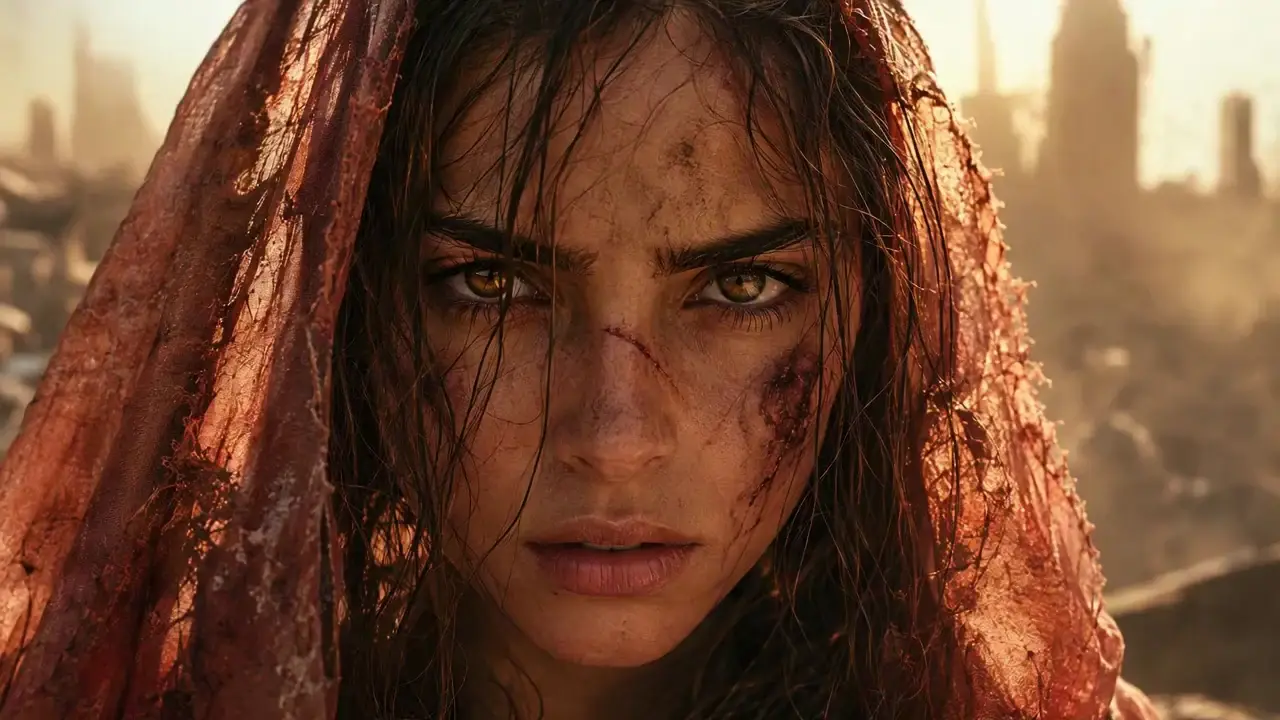
A diffusion model that understands what is in the shot. Beyond repairing pixels lost to compression or age, it generates detail that fits the content — skin texture and facial contours, the weave of fabric — for a natural, high-fidelity result. Built for AI-generated and low-resolution video: sources up to 1080P (SDR only), output up to 2K, about 15–20 minutes per minute of footage.
04
More than thirty deep AI algorithms and several times the compute of Standard, applied shot by shot for the best result each shot can reach. Choose it for difficult footage, big-screen delivery and masters you will not export again. A minute of footage takes about 20–30 minutes.
AI Video Upscaler
Start from what the clip is and where it is going. When two models fit, try the faster, cheaper one first.
AI-generated clip at 480P or 720P
Generative AI to rebuild faces and texture; Standard with the AIGC preset when you need 4K
Short drama or talking-head footage
Standard with the Short drama preset
Social video compressed by re-uploads
Fast for speed, or Standard with the General preset
Old film or archive footage
Standard with the Old film preset; Professional for the hardest reels
Final master for a large screen
Professional
Choppy 24fps motion
Any model, with the frame rate set to 60fps
Drop in an MP4, MOV, WebM or MKV file up to 2GB. The workspace reads its length and resolution, so the credit estimate is ready before anything runs.
Fast, Standard, Generative AI or Professional. With Standard, also pick the scene preset that matches the footage.
Choose 720P, 1080P, 2K or 4K (Generative AI stops at 2K) and 30, 60 or 120fps. A frame rate above the source's turns on frame interpolation; staying within four times the source rate looks most natural.
The job runs in the background. When it finishes, compare the original and the upscaled result at the same moment, then download the video.
Upload a video, pick a model, and see the credit cost before anything runs.