01
A product photo that moves
One clean studio shot becomes a slow push in, a turn, or a change of light — without rebuilding the set.
Upload one image and it becomes a moving shot. The picture you start with sets the composition, the subject, and the look; you describe what should happen next, and the motion is generated around what is already there.
Creative workspace
Image to video is turning a still picture into a moving shot: you upload one image, say what should happen next, and the model animates the frame you already have. The composition, the subject, and the lighting you started with all survive into the clip.
These are the jobs people actually bring to Image to Video, and the settings each one needs.
One clean studio shot becomes a slow push in, a turn, or a change of light — without rebuilding the set.
Character art keeps its face, clothing, and line work while gaining expression and gesture.
The frame you already drew becomes the shot it was standing in for.
Turn a single still into a vivid moving scene. Start with your own image, describe the action and camera movement, then watch the AI image to video generator preserve its subject and visual style while bringing it to life.
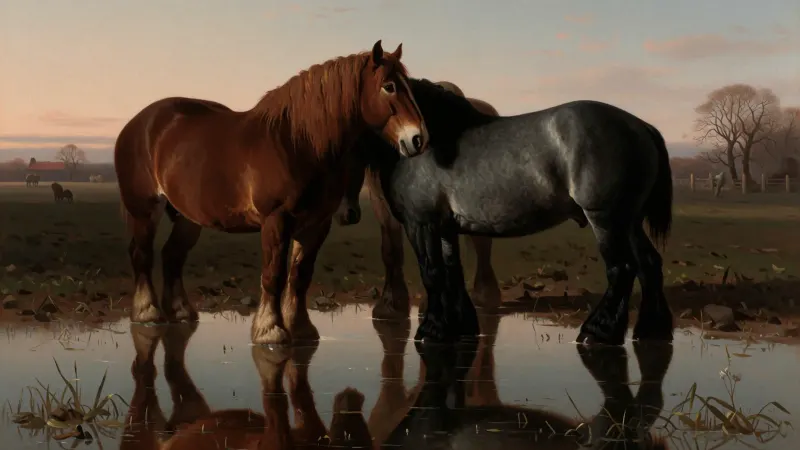
Prompt
A powerful horse gallops at full speed as the camera tracks alongside it, with natural mane movement and cinematic dust in the air.
Image to Video
Where Image to Video is the right call, and where a different model does the job better.
Starts from
An image you already have
The prompt decides
What moves, and how
Pick this when
The look is settled and only motion is missing
Write the idea and add any source or reference material the tool needs.
Choose the model, format, resolution, and duration that match delivery.
Submit, then review the result in the shared Studio conversation flow.
Set up the brief now, then continue in the shared Studio workspace.