sora 2 video enhancer
Use Video Enhancer as a Sora 2 video enhancer: upscale Sora 2 clips to 1080P, 2K or 4K, rebuild soft faces and texture, and smooth motion to 60fps.
 VideoEnhancer Team
Sora 2 is very good at the parts of a video that are hard to fake: believable motion, camera moves, and sound that matches the picture. Where it falls short is the file you download. Sora 2 renders at 720p — in OpenAI's API, the standard model outputs 1280×720 and Sora 2 Pro goes up to 1792×1024 — and the result is compressed for sharing. On a phone that is fine. On a laptop, a TV or a client's monitor, faces go waxy, hair and fabric smear, and fast motion steps.
A Sora 2 video enhancer fixes the delivery, not the shot. This guide shows how to run a Sora 2 clip through Video Enhancer, which model to pick, and what it costs.
What a Sora 2 video enhancer actually fixes
Three things make a Sora 2 download look worse than the generation did:
- Resolution. 720p stretched to a large screen is soft everywhere.
- Compression. Fine, repeating detail — hair, fabric, foliage, skin — is the first thing an encoder throws away.
- Detail that never resolved. Small faces and backgrounds are sometimes only half-formed. Sharpening cannot help, because there is nothing there to sharpen.
An AI enhancer works on all three at once: it upscales, repairs compression damage, and — with the right model — generates the detail a larger frame should contain.
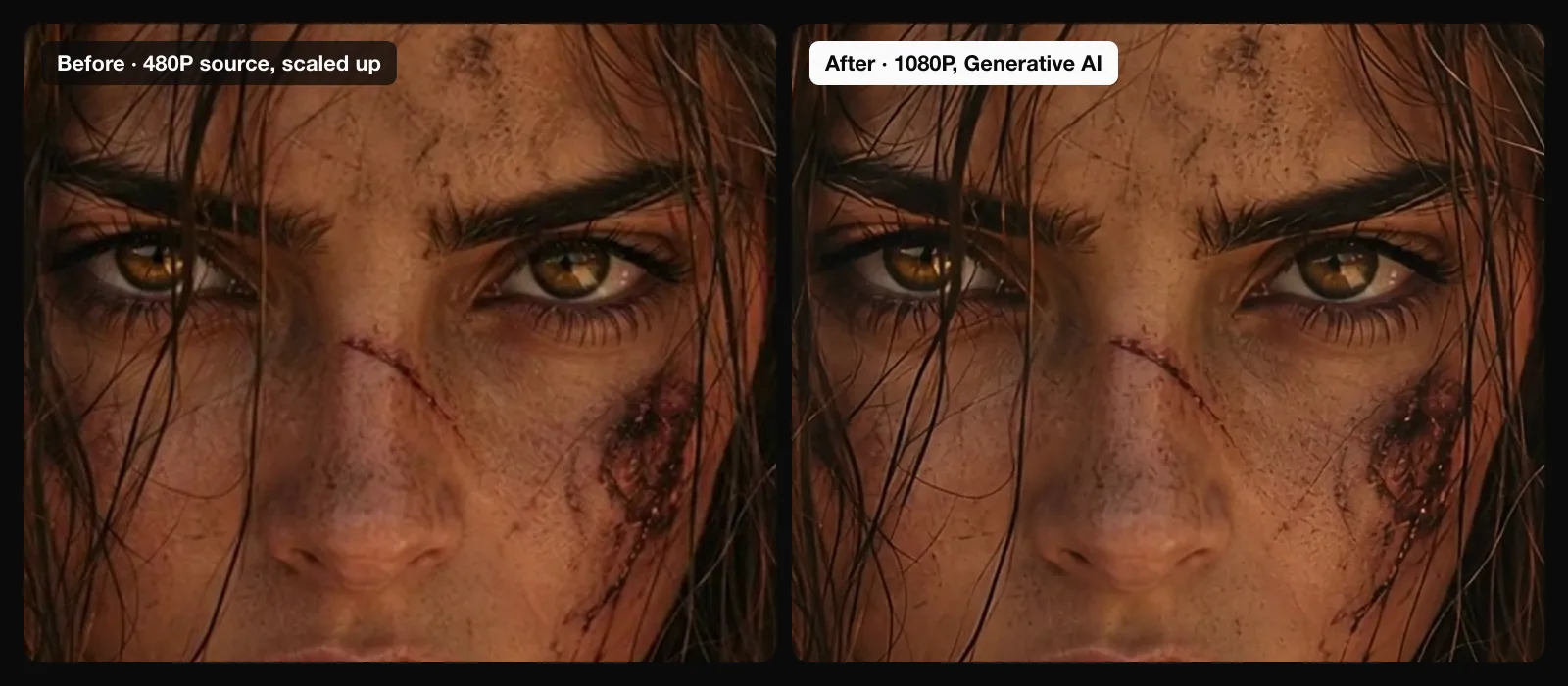
A real Video Enhancer result on an AI-generated clip (not from Sora): 480P in, 1080P out with Generative AI. Lashes, hair and skin texture are rebuilt, not just enlarged.
How to enhance a Sora 2 video, step by step
1. Download the original
Download the clip straight from Sora rather than from a re-share — anything that has been through a messaging app or a social platform has been compressed again. Pick the take you want to keep first: enhancement is a finishing step, not a way to rescue a weak generation.
2. Upload it to the AI Video Upscaler
Open the AI Video Upscaler and drop in the MP4. Files up to 2GB are accepted. The workspace reads the clip's length and resolution, so the credit cost is shown on the Submit button before anything runs.
3. Pick the model
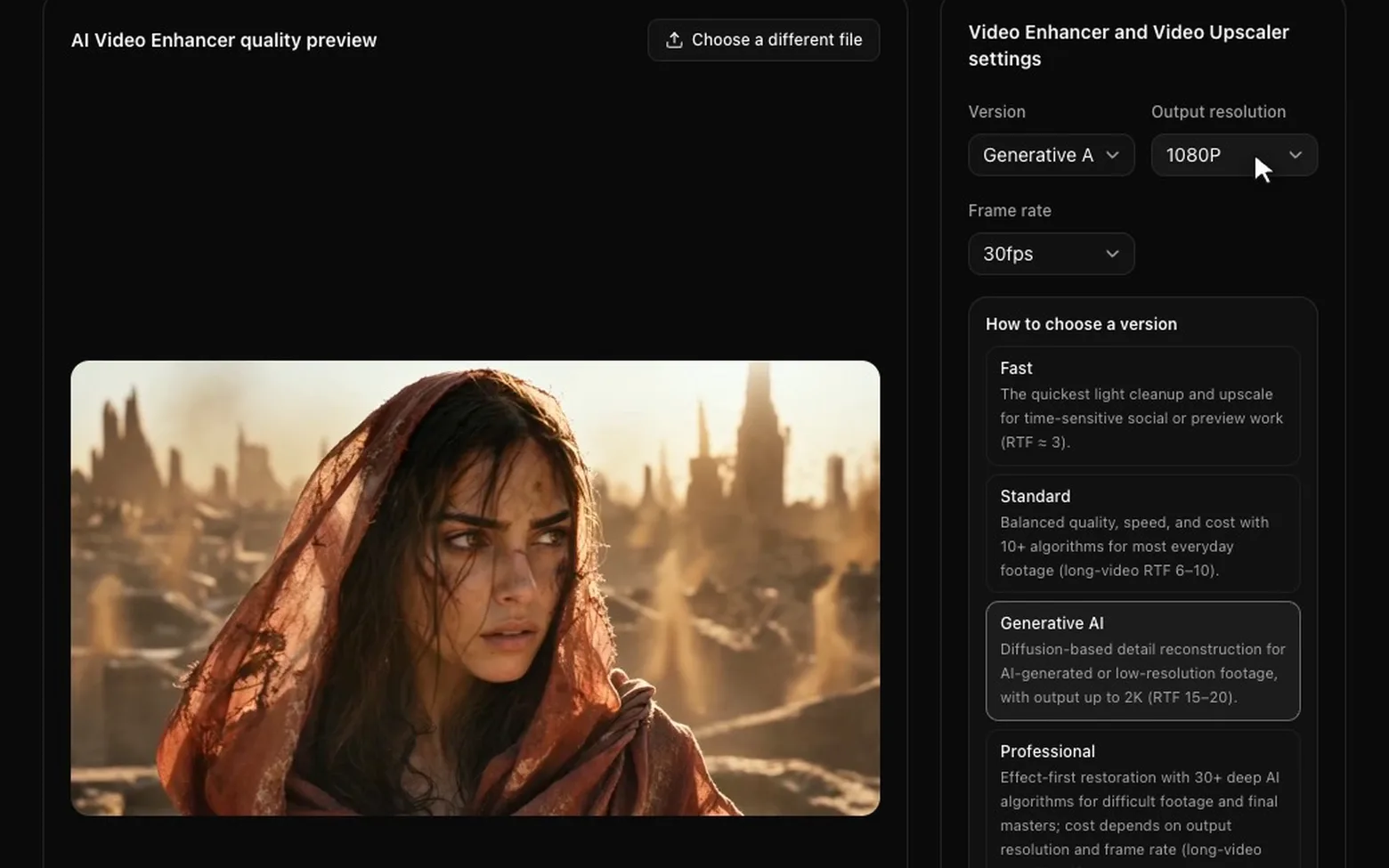
The workspace: pick a model from the cards (each one explains what it is for), then the resolution and frame rate.
For Sora 2 footage, two of the four models matter most:
- Generative AI — the first one to try. It is a diffusion model that understands what is in the frame and generates detail to match: skin texture, facial contours, the weave of fabric. It accepts sources up to 1080P, which covers both Sora 2 (1280×720) and Sora 2 Pro (1792×1024), and outputs up to 2K.
- Standard with the AIGC preset — tuned for AI-generated video. Choose it when you need a 4K deliverable, or when Generative AI changes a face more than you want.
Fast is for quick social cuts, and Professional — the most thorough and the slowest — is for a clip that will be shown on a big screen.
4. Set resolution and frame rate
1080P is the right first target for most Sora 2 clips: a clear step up at a modest cost. Go to 2K or 4K when the destination demands it.
If motion looks steppy, set the frame rate to 60fps and the model will interpolate new frames. Keep the target within about four times the source frame rate; beyond that, interpolated motion starts to look artificial.
5. Submit, compare, download
The job runs in the background, so you can close the tab. When it finishes, drag the before/after slider across faces, fine texture and the fastest motion in the shot, then download the MP4. Uploads and results are deleted automatically after 30 days, so save what you want to keep.
What it costs
Credits are charged per second of video, by model, output resolution and frame rate. For a 10-second Sora 2 clip at up to 30fps:
- Fast, 1080P: 20 credits
- Generative AI, 1080P: 80 credits
- Generative AI, 2K: 160 credits
- Standard (AIGC preset), 4K: 160 credits
Up to 60fps doubles these, and up to 120fps doubles them again. A job that fails returns its credits. Every rate is on the pricing page.
Good to know
- Sound comes through. Sora 2 clips carry audio, and the enhanced file keeps the source's audio track.
- The framing stays yours. Enhancement keeps the composition, timing and camera movement. If the shot is wrong, regenerate it in Sora.
- Watermarks are not removed. Video Enhancer improves picture quality; it does not strip watermarks. Only enhance footage you have the right to use.
- Do not pre-sharpen. Hand the enhancer the untouched download. Sharpening or resizing in an editor first adds halos the model then has to work around.
Try it on your own Sora 2 clip
Sora 2 gets you the shot; a Sora 2 video enhancer gets that shot to a quality you can publish at any size. New accounts receive bonus credits on sign-up, so you can run one of your own clips through the AI Video Upscaler and judge the result on your own screen. For more on finishing generated footage, see how to enhance Sora AI video quality.